

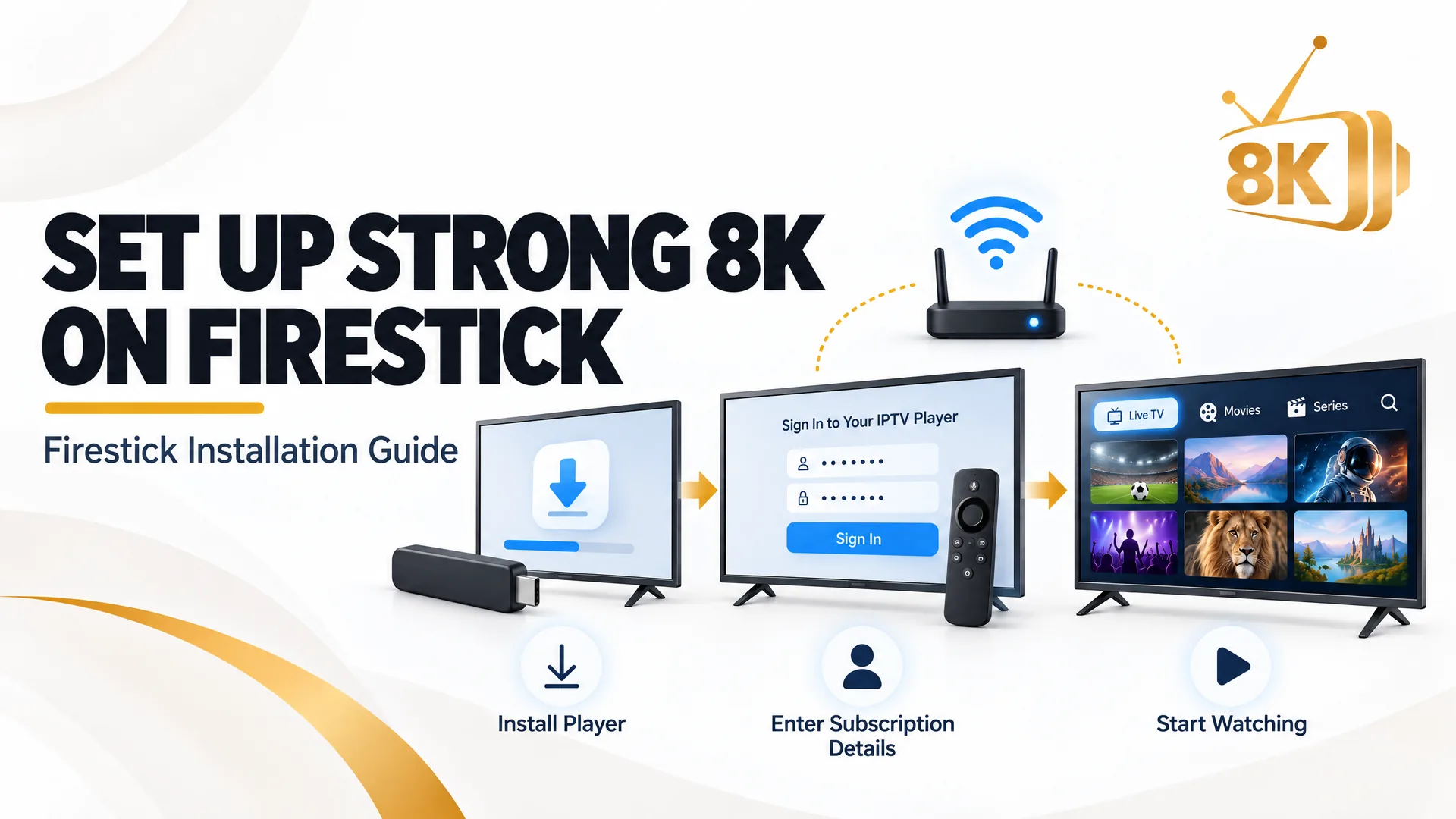
Firestick Setup

How to Install or Set Up Strong 8K IPTV on Firestick? Complete Guide

Want to watch Strong 8K IPTV on your Amazon Firestick but don't know how to install or configure it? The setup process is straightforward once you have a compatible IPTV player and your subscription details.

Strong 8K IPTV allows customers to access available live TV channels, movies, and series through compatible streaming devices. On Firestick, you can use a supported IPTV application, add your subscription details, and start watching.

Whether you searched for how to install Strong 8K on Firestick, Strong8K IPTV Firestick setup, or Strong 8K IPTV installation, this guide explains the complete process in simple steps.

How to install and set up Strong 8K IPTV on Firestick thumbnail

How to Install Strong 8K IPTV on Firestick

To install Strong 8K IPTV on Firestick, first download a compatible IPTV player from the Amazon Appstore. Then open the player, enter the subscription details provided by Strong8K, and load your available channels and content.

Follow these steps to complete the setup:

  1. 1Connect your Amazon Firestick to your television and internet connection.
  2. 2Open the Amazon Appstore.
  3. 3Search for a compatible IPTV player, such as IPTV Smarters or another supported application.
  4. 4Select the application and click Download or Get.
  5. 5Open the installed IPTV player.
  6. 6Choose the appropriate login method, such as Xtream Codes or M3U.
  7. 7Enter the subscription details provided by the Strong8K support team.
  8. 8Submit your information and wait for the channels and content to load.

Once the setup is complete, you can browse the available live TV channels, movies, and series through your IPTV player.

What Do You Need Before Setting Up Strong8K IPTV on Firestick?

Before starting the installation, make sure you have everything required.

RequirementPurpose
Amazon FirestickYour streaming device
Stable internet connectionFor loading and watching content
Compatible IPTV playerTo access your subscription
Strong8K subscription or trialProvides your viewing access
Login detailsConnects the player to your subscription
Firestick remoteUsed to navigate the settings and application

You can request a free trial from Strong8K before purchasing a subscription. This allows you to test the service on your Firestick and check whether it meets your requirements.

Important: Strong 8K IPTV is the subscription service, while applications such as IPTV Smarters and TiviMate are separate players. Some IPTV players may require a separate licence or payment.

Step-by-Step Guide to Set Up Strong 8K IPTV on Firestick

If you want a more detailed explanation, follow the steps below.

1

Open the Amazon Appstore

Turn on your Firestick and go to the home screen.

Navigate to the Find or Search option and open the Amazon Appstore. Search for your preferred compatible IPTV player.

You can check applications such as:

  • IPTV Smarters.
  • TiviMate, where available.
  • Other compatible IPTV players.

Choose an application that supports your subscription's login method.

2

Download and Install an IPTV Player

After finding your preferred application, open its listing.

Select Download or Get and wait for the installation to finish.

Once installed, choose Open to launch the application.

If the player is not available in your Amazon Appstore, contact Strong8K support to confirm an alternative installation method for your Firestick model.

3

Open the IPTV Application

When you launch the IPTV player, you may see different options for adding an account or playlist.

Depending on the application, these may include:

  • Login with Xtream Codes API.
  • Load M3U Playlist.
  • Add Playlist.
  • Add User.

Select the method that matches the subscription details supplied by Strong8K.

4

Enter Your Strong 8K IPTV Login Details

After selecting the login method, enter the information provided by the support team.

For an Xtream Codes login, you generally need:

Login fieldInformation required
Any NameA name for your playlist, such as Strong8K
UsernameYour supplied username
PasswordYour supplied password
Server URLThe supplied server address

Enter the details carefully because usernames and passwords may be case-sensitive.

If you receive an M3U playlist instead, select the M3U option and enter the complete playlist URL.

5

Load Your Channels and VOD Library

After entering your details, select Login, Add User, or the relevant confirmation option.

The application will connect to your subscription and load the available content.

Depending on your player, you may see separate categories for:

  • Live TV.
  • Movies.
  • TV Series.
  • Catch-up, where available.
  • Electronic Programme Guide (EPG).

Wait for the playlist and channel information to finish loading before navigating through the application.

6

Organise Your IPTV Channels

Many IPTV players offer additional features to make browsing easier.

You can organise favourite channels, browse categories, and use the electronic programme guide where supported.

You may also be able to adjust playback settings, language preferences, and parental controls.

Your available options depend on the IPTV player you have installed.

How to Install Strong 8K IPTV Using Downloader on Firestick

Some compatible Fire TV devices allow users to install Android applications through the Downloader app. This process is commonly called sideloading.

Use this method only if Strong8K support provides an official, compatible download link or installation instructions for your device.

Step 1: Install Downloader

  1. Open the Amazon Appstore.
  2. Search for Downloader by AFTVnews.
  3. Select the application.
  4. Click Get or Download.
  5. Wait for installation.

Step 2: Enable Installation Permissions

On Fire TV models that support sideloading:

  1. Open Settings.
  2. Select My Fire TV or Device and Software.
  3. Open Developer Options.
  4. Select Install Unknown Apps.
  5. Enable permission for Downloader.

If Developer Options is not visible, some Fire TV versions allow you to reveal it by opening Settings, selecting My Fire TV, going to About, highlighting the device name, and pressing the Select button seven times.

Menu names and availability vary by Fire OS version and device model. Some newer Fire TV models may restrict sideloading.

Step 3: Enter the Official Download Link

Open Downloader and enter the installation link provided by the Strong8K support team.

Check that the download comes from a trusted source before proceeding. Avoid random APK websites and unverified Downloader codes.

Step 4: Install the Application

Once the APK downloads, open the installation prompt and select Install if the application is compatible with your device.

After installation, launch the application and follow the login instructions provided by Strong8K.

Note: Installing an APK does not automatically activate your subscription. You still need the correct account details.

How to Set Up Strong8K IPTV Using Xtream Codes or M3U Playlist

Strong8K may provide different login formats depending on the supported player and account configuration.

Understanding the difference helps you choose the correct setup method.

FeatureXtream CodesM3U Playlist
Login methodServer URL, username, passwordPlaylist URL
SetupEnter separate login fieldsPaste the complete URL
EPGSupported by compatible playersDepends on the player and supplied EPG information
Best forPlayers with Xtream login supportPlayers with M3U support

If you are unsure which method to use, ask the support team for the correct details for your Firestick application.

Never share your login information publicly.

How to Set Up EPG on Strong 8K IPTV

EPG stands for Electronic Programme Guide. It displays information about television programmes, including programme names, schedules, and descriptions where available.

If your IPTV player supports external EPG configuration, follow these general steps:

  1. 1Open your IPTV player.
  2. 2Navigate to Settings.
  3. 3Find the EPG or TV Guide section.
  4. 4Select Add EPG Source if available.
  5. 5Enter the EPG URL supplied by your provider.
  6. 6Refresh or update the guide.

Not every player requires a separate EPG URL. Some applications load programme information automatically through the playlist or account connection.

Strong 8K IPTV Not Working on Firestick? Common Problems and Fixes

Sometimes Strong 8K IPTV may not work as expected after installation. The problem does not always mean the service is down. It may be related to your internet connection, application, or account settings.

ProblemPossible solution
IPTV player not openingRestart Firestick and update the application
Channels not loadingRefresh the playlist and check login details
Invalid login errorVerify username, password, and server URL
BufferingCheck Wi-Fi stability and reduce network congestion
Black screenTry another channel and restart the player
EPG not loadingRefresh the guide or check the EPG URL
Application crashingClear the app cache and restart Firestick
Subscription not connectingContact support to check your account

Fix IPTV Buffering on Firestick

If channels keep stopping during playback, try the following:

  • Restart your Firestick.
  • Restart your Wi-Fi router.
  • Use a stable 5 GHz Wi-Fi connection where available.
  • Connect through Ethernet if supported.
  • Close unnecessary background applications.
  • Clear the IPTV player's cache.
  • Test another channel.

Fix Strong8K Login Problems

If your IPTV player displays an authentication error, check your account information.

Make sure the username, password, and server URL are entered correctly. If you continue receiving an error, contact Strong8K support and ask them to verify your subscription details.

Frequently Asked Questions About Strong 8K IPTV on Firestick

1. How do I install Strong 8K IPTV on Firestick?

Download a compatible IPTV player from the Amazon Appstore, open it, and enter your Strong8K subscription details using Xtream Codes or an M3U playlist. Once connected, your available channels and content will load.

2. Can I install Strong8K IPTV directly from the Amazon Appstore?

You can install a compatible IPTV player from the Amazon Appstore. Whether a dedicated Strong8K application is available depends on the current app listing and device compatibility. Contact support for the recommended installation method.

3. Do I need Downloader to install Strong 8K on Firestick?

Not necessarily. If your preferred IPTV player is available through the Amazon Appstore, you can install it directly. Downloader is only needed when using a compatible sideloading method.

4. Which IPTV player should I use for Strong 8K on Firestick?

You can consider IPTV Smarters or TiviMate, depending on availability and compatibility. Check which player supports the login details supplied with your subscription. Some applications require a separate licence.

5. How do I add Strong 8K IPTV to IPTV Smarters on Firestick?

Open IPTV Smarters, select the Xtream Codes login option, enter your username, password, and server URL, and submit the information. If you receive an M3U playlist, choose the corresponding playlist option instead.

6. Can I use Strong8K IPTV on Firestick 4K and Fire TV Stick 4K Max?

Compatible Fire TV Stick 4K and 4K Max devices can run supported IPTV players. Check the application requirements and Fire OS compatibility before installing.

7. Can I use my Strong8K subscription on multiple Firesticks?

This depends on the simultaneous connection allowance included in your subscription. Installing an application on multiple devices does not automatically mean all devices can stream at the same time. Confirm your plan's connection limits with support.

8. Why is Strong 8K IPTV buffering on Firestick?

Buffering may be caused by unstable Wi-Fi, network congestion, device performance, or an issue with a particular stream. Restart your router, test your internet connection, and try another channel.

9. Why are my Strong8K channels not loading?

Check whether your subscription is active and your login details are correct. Refresh the playlist, restart the application, and test your connection. If the problem continues, contact support.

10. Can I use Strong 8K IPTV without an 8K television?

Yes. You do not need an 8K television to use the service on a compatible Firestick. The available playback resolution depends on the content, player, device, and television.

11. Do I need a separate IPTV subscription to use TiviMate or IPTV Smarters?

Yes. IPTV Smarters and TiviMate are player applications. They do not automatically provide television channels or movies. You need a compatible subscription, such as Strong8K, and the required login details.

12. How can I get help setting up Strong 8K IPTV on Firestick?

Contact the Strong8K support team through WhatsApp or the official website. Share your Firestick model and the IPTV player you are using so the team can provide the appropriate setup instructions.

Start Watching Strong 8K IPTV on Your Firestick

Setting up Strong 8K IPTV on Firestick is simple when you follow the correct installation and login steps. Install a compatible IPTV player, add your subscription details, and load your available channels and on-demand content.

If you have not subscribed yet, you can contact the Strong8K team to request a free trial and test the service on your device before choosing a plan.

Already have a subscription but need installation assistance? Visit 8K-Strong.us and contact the support team for help with your Firestick setup, login details, and technical questions.